
Help Center
Learn how to get the most out of BlueJinn.
How to Connect Your Instagram Business Account
To start using BlueJinn, you need to connect your Instagram Business account through Meta's official OAuth flow. Follow the steps below to complete the connection in a few minutes.
Before You Begin
Make sure you have the following:
- ✓An Instagram Business or Creator account (personal accounts are not supported)
- ✓A Facebook Page linked to your Instagram account (owned directly or managed through a Meta Business Portfolio)
- ✓Admin or management access on that Facebook Page or Business Portfolio
Step 1: Log in to the BlueJinn Portal
Open the BlueJinn Portal and sign in with your account. If you don't have an account yet, reach out to our team at contact@converjinn.ai to get started.
Step 2: Click "Connect with Facebook"
After logging in, you'll see a screen asking you to connect your Instagram account. Click the "Facebook ile Bağlan" (Connect with Facebook) button to start the authorization process.

Step 3: Approve the Meta Permissions
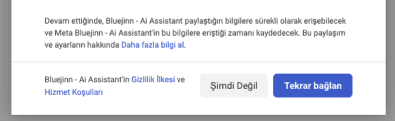
A Facebook login window will open. Review the permissions that BlueJinn needs and click "Tekrar bağlan" (Connect Again) to grant access.
The permissions you're granting allow BlueJinn to:
- See the list of Facebook Pages you manage
- Read page engagement metrics
- Manage page metadata and webhook subscriptions
- Access basic Instagram account info (username, profile picture)
- Read and send Instagram Direct Messages on your behalf
- Access your business portfolio information
BlueJinn uses Meta's official APIs and does not access data beyond the permissions explicitly granted during the Facebook Login flow.
Step 4: Confirm the Connection
Once you approve the permissions, you'll see a "Bağlantı Başarılı!" (Connection Successful) confirmation screen. Click "Portalı Tanıyalım" (Explore the Portal) to continue to your dashboard.

Having Trouble?
- Make sure your Instagram account is a Business or Creator account — personal accounts are not supported.
- Verify that your Facebook Page is linked to your Instagram account. You can check this in Instagram > Settings > Account > Linked Accounts.
- Confirm you have admin or management access on the Facebook Page (or Business Portfolio) connected to your Instagram account.
- If you're still having issues, contact us at contact@converjinn.ai and we'll help you get connected.